Simple Todo is a personal task and notes app: jot tasks down in a second, get reminded on your phone or in Telegram, write Markdown notes with diagrams, code blocks and PDFs, organise notebooks with a map and an outline, focus with Pomodoro — and keep your streak going with Daily Quest. Free, no ads, works offline.
Sign up with email or your Google account — no card needed.
To-dos3 left
Submit monthly report5:00 PM Today
Call momYesterday Overdue
Book the bus home
Buy a birthday gift
See the real app
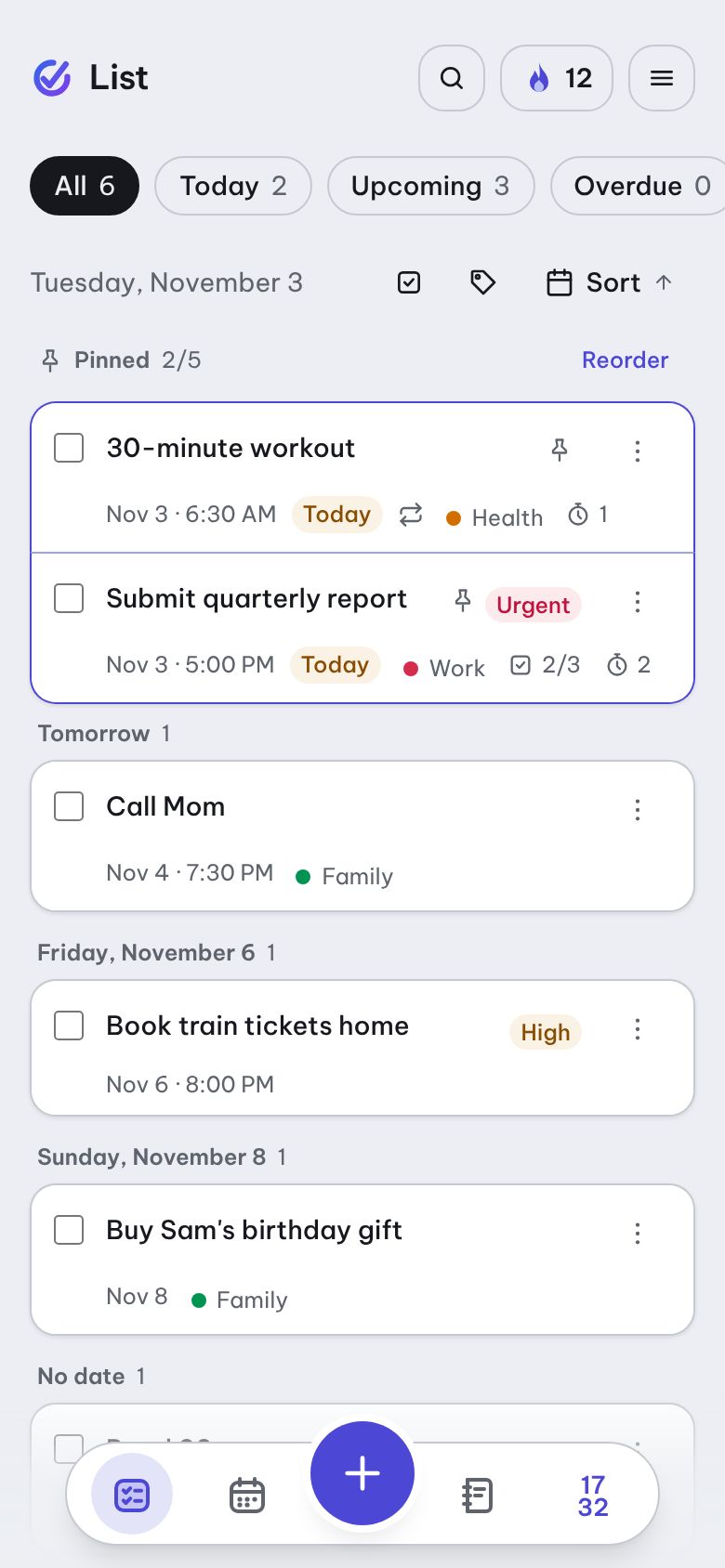
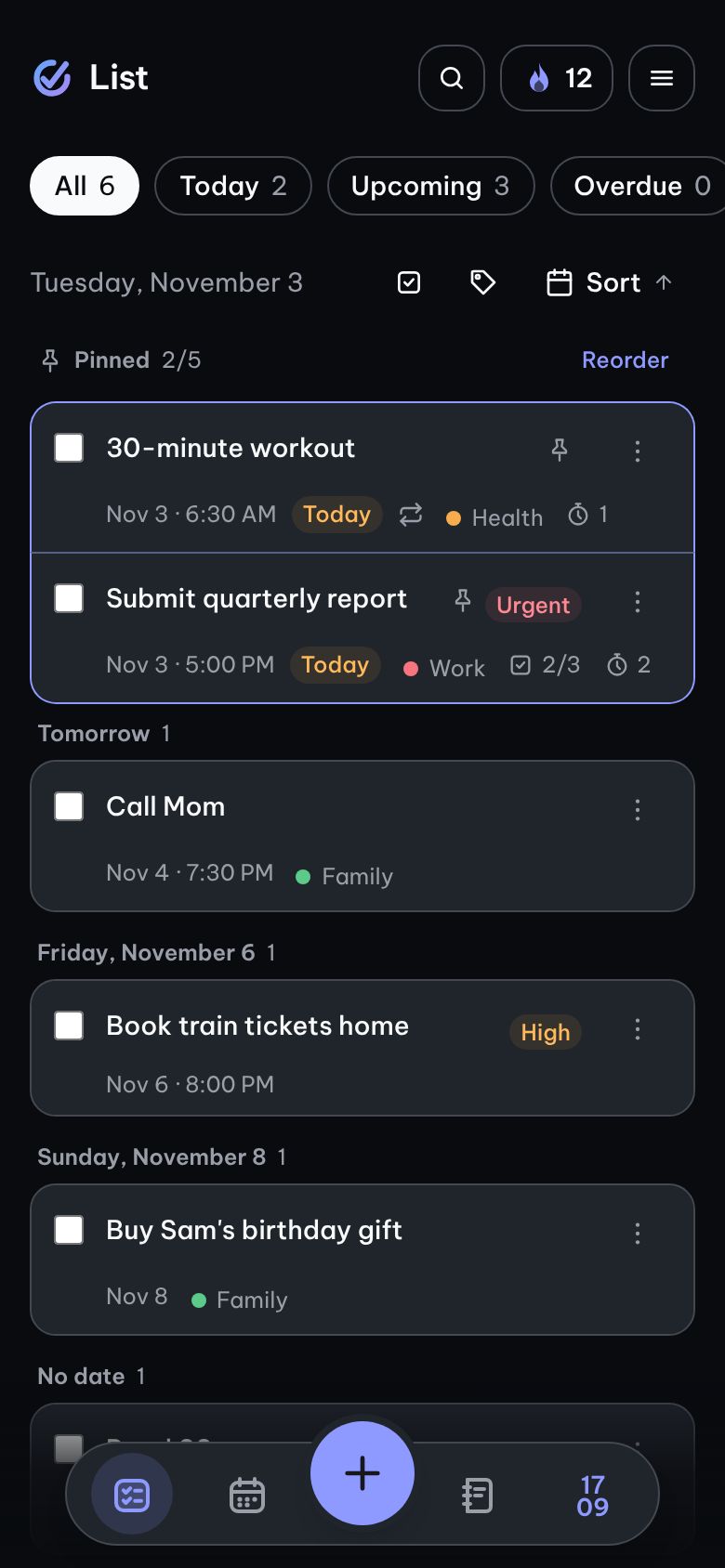
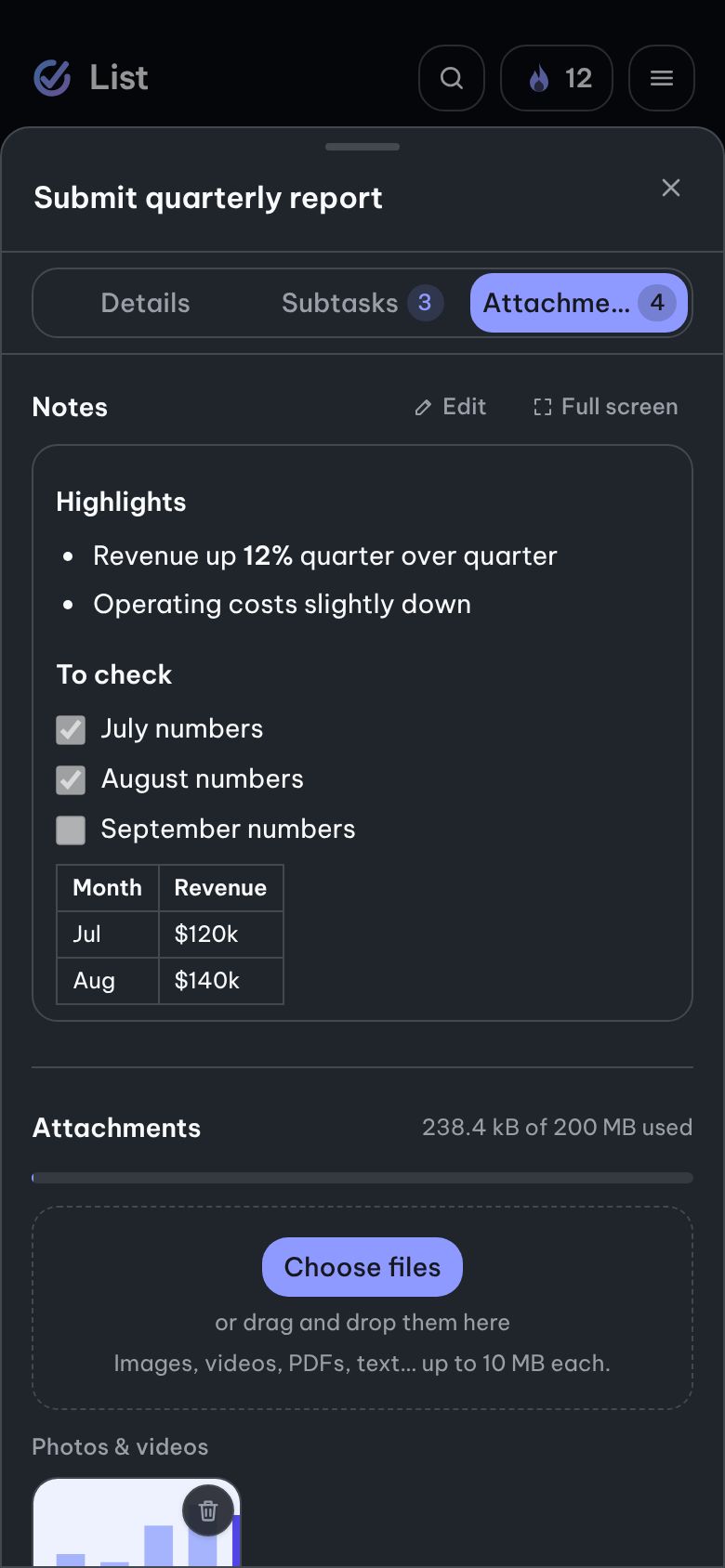
Screenshots taken straight from Simple Todo on a phone — switch light/dark at the top to see both looks.
What matters stays on top
An overview bar tells you at a glance how many tasks are overdue, due today, upcoming and done — tap one to filter. A highlighted Pinned area sits at the top of your list; reorder it by dragging or with up/down buttons.
Due date, tags, priority and subtask progress right on the card
Find any task instantly — accents optional
Long-press to select several tasks and act on them at once
A bottom dock keeps List · Calendar · Notes · Pomodoro within thumb reach
A little motivation every day
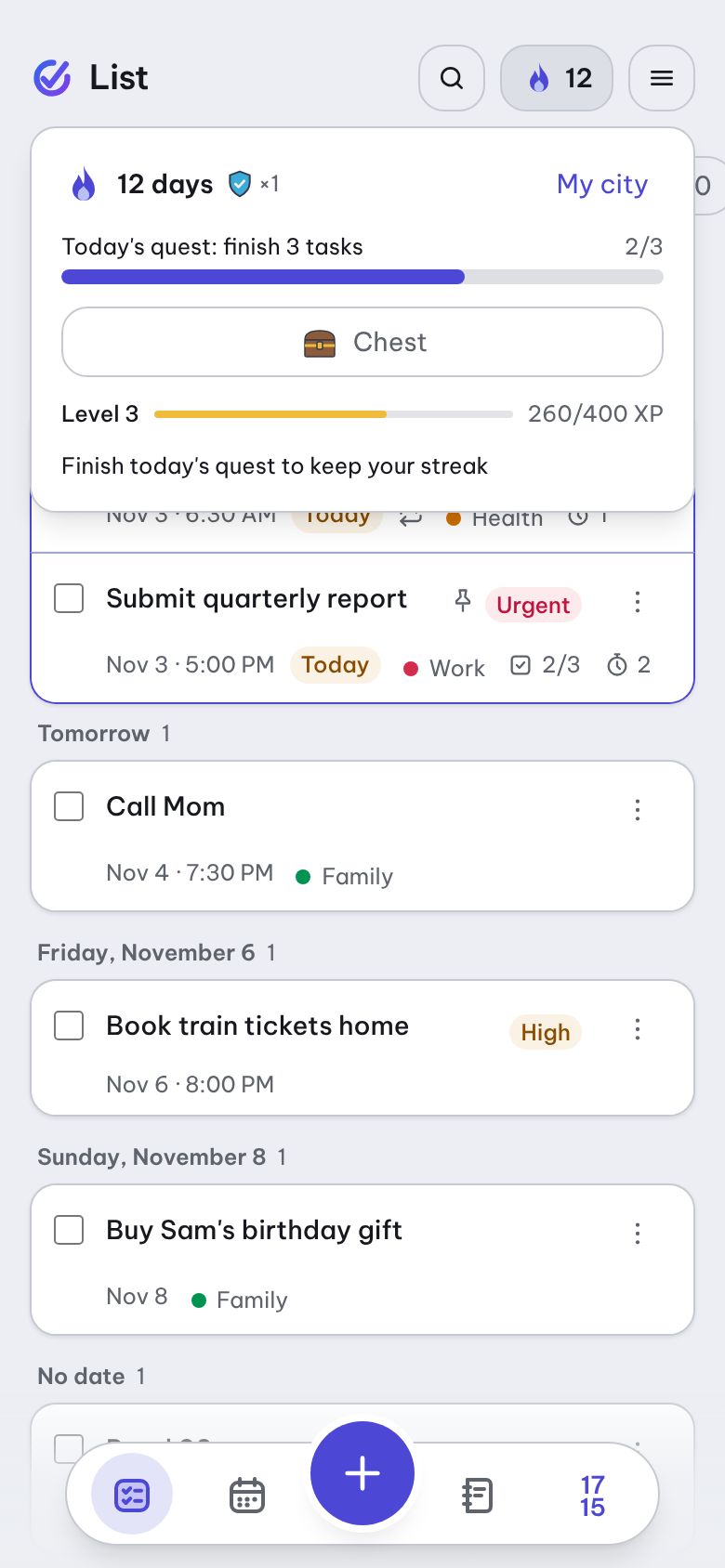
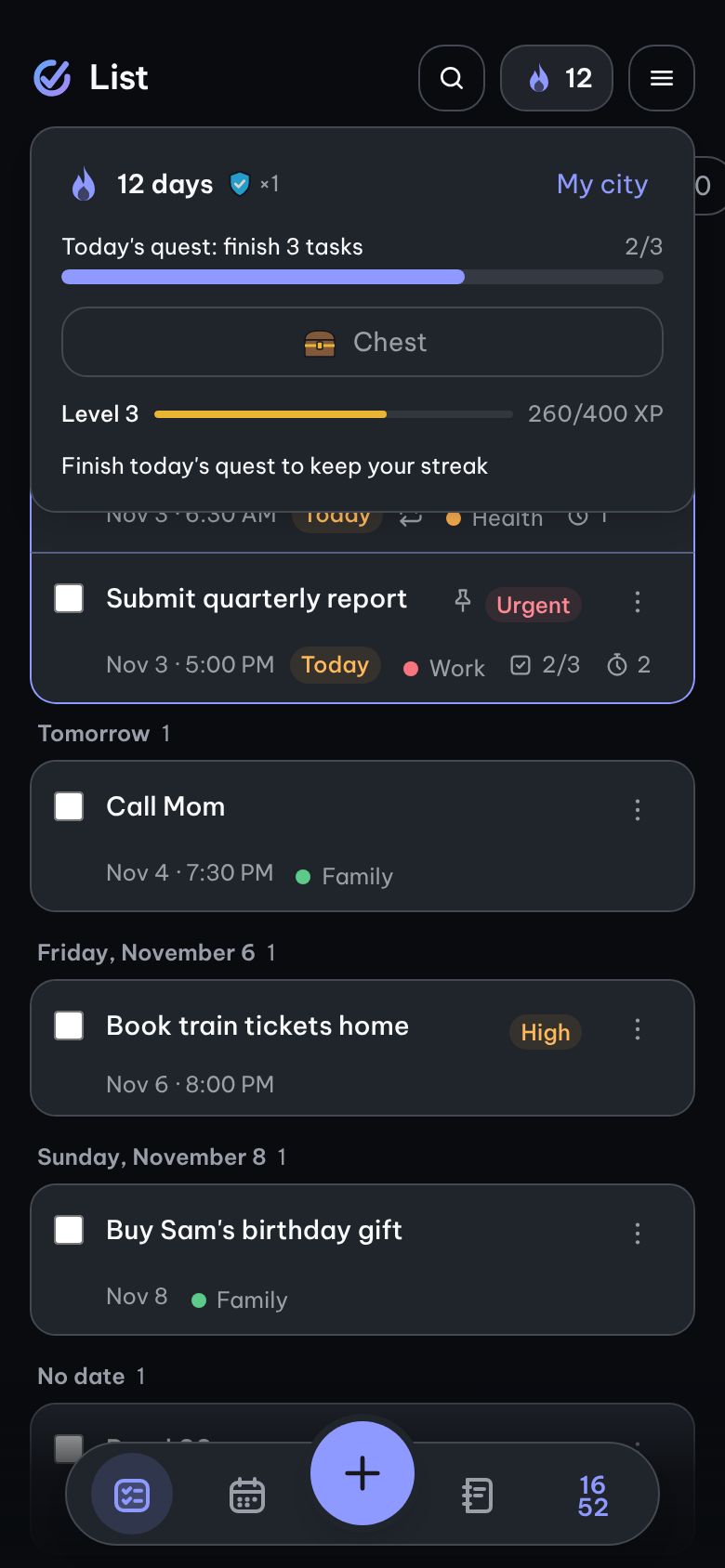
The flame button at the top shows your streak. Tap it to see today's quest: finish enough tasks and the quest is done — your chest opens with a new item for your city.
A daily goal of 1–5 tasks, your choice; the first day needs just one
Shields save your streak when you miss a day; every 7-day streak earns another
Levels and XP from tasks you finish — each task counts only once
Not for you? Turn Daily Quest off in Settings; your data stays
A notebook that knows your tasks
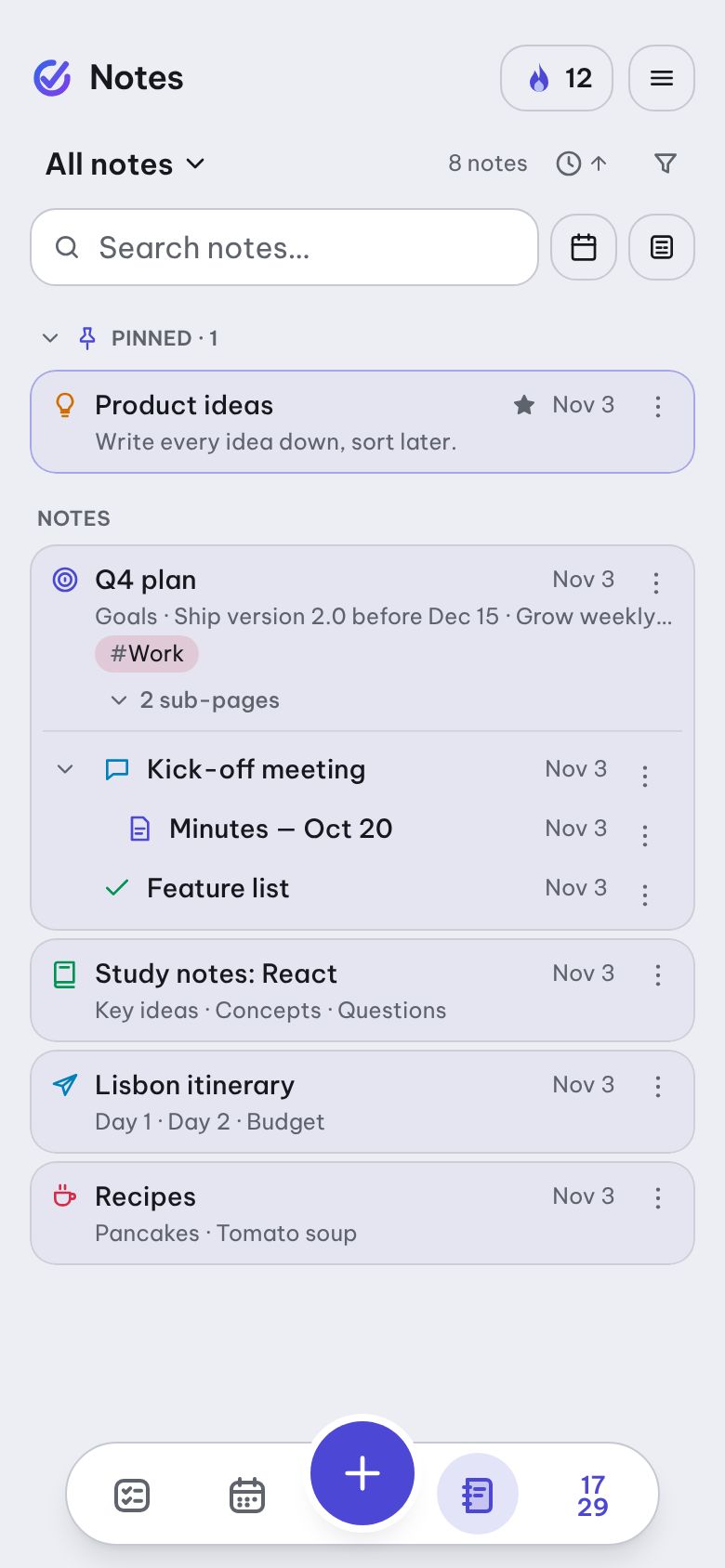
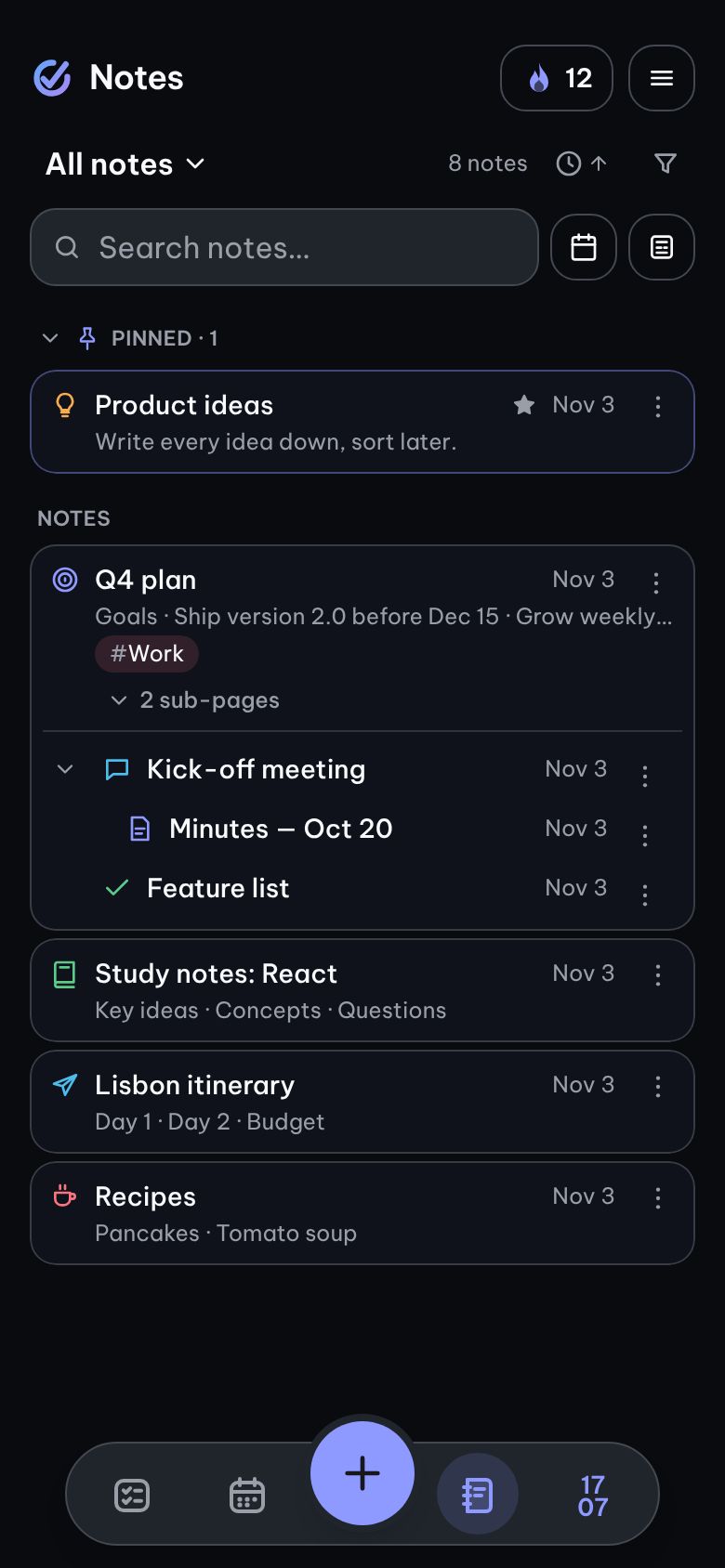
Markdown notes live in their own notebooks, sub-pages tuck neatly inside their parent, and every note gets an icon you can spot at a glance. Turn a checklist line into a task with one tap — tick it anywhere and both stay in sync.
Pin, favorite and share tags with your tasks; swipe to pin or move to trash
Ready-made templates: meeting, study notes, project, daily journal
Add images, link other notes with [[, browse version history
Full-text search across every note — accents optional
Write on white paper, read on warm paper
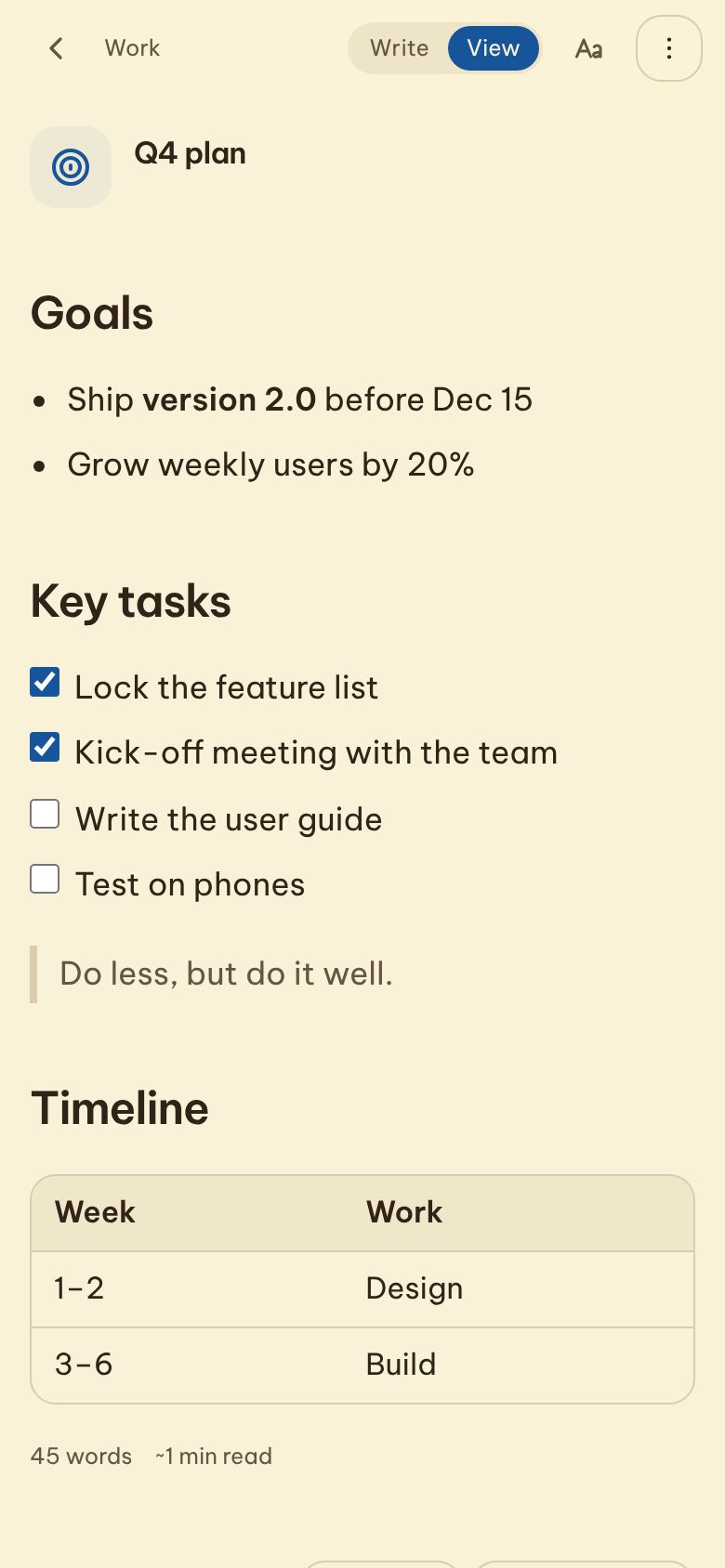
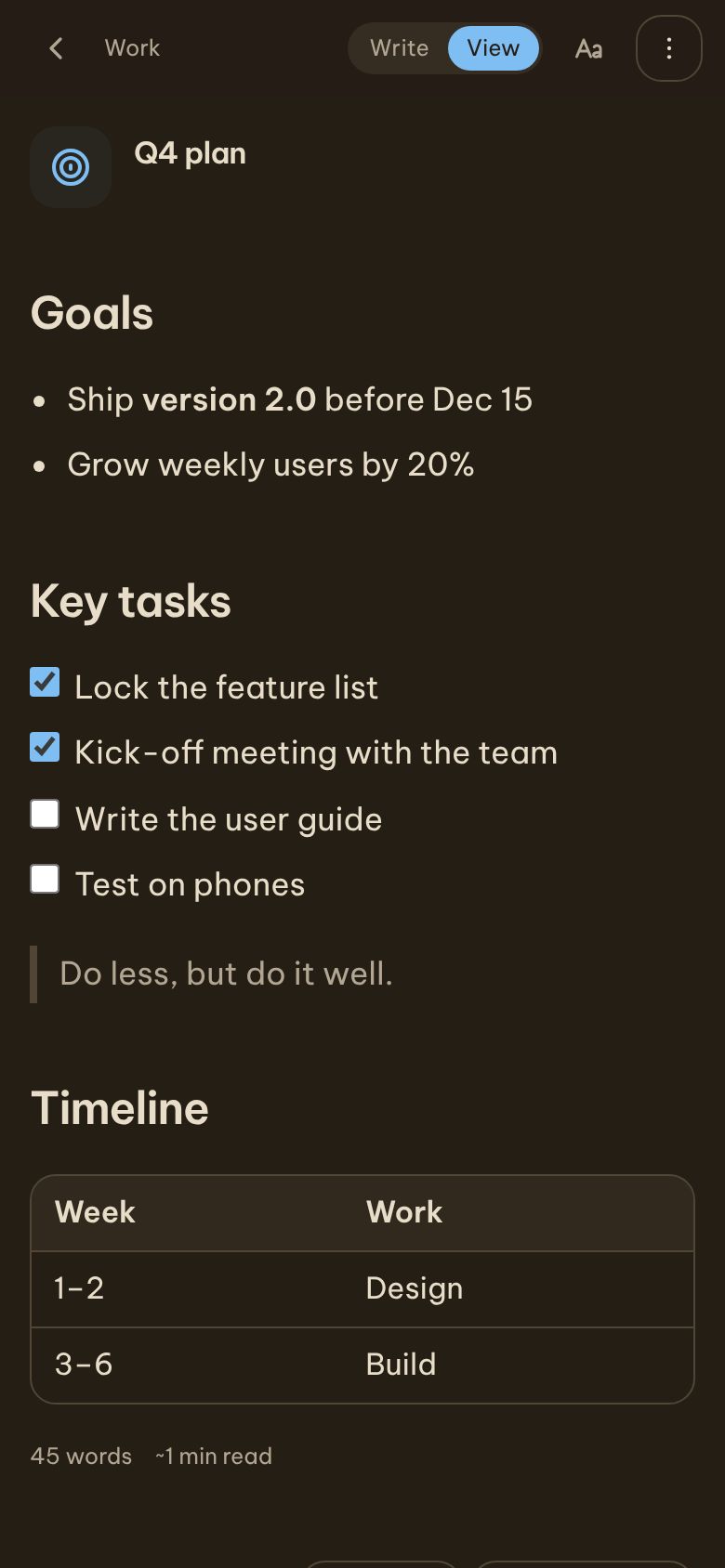
Write with a compact toolbar that saves as you type. When you come back to read, switch on Reading mode: a warm paper background, a comfortable column, larger airy type and an estimated reading time.
A table of contents built from your headings
Mermaid diagrams, highlighted code, highlighter and text colours look great while reading
Export a note to PDF through the Print dialog
Related tasks and notes that mention this one sit at the bottom
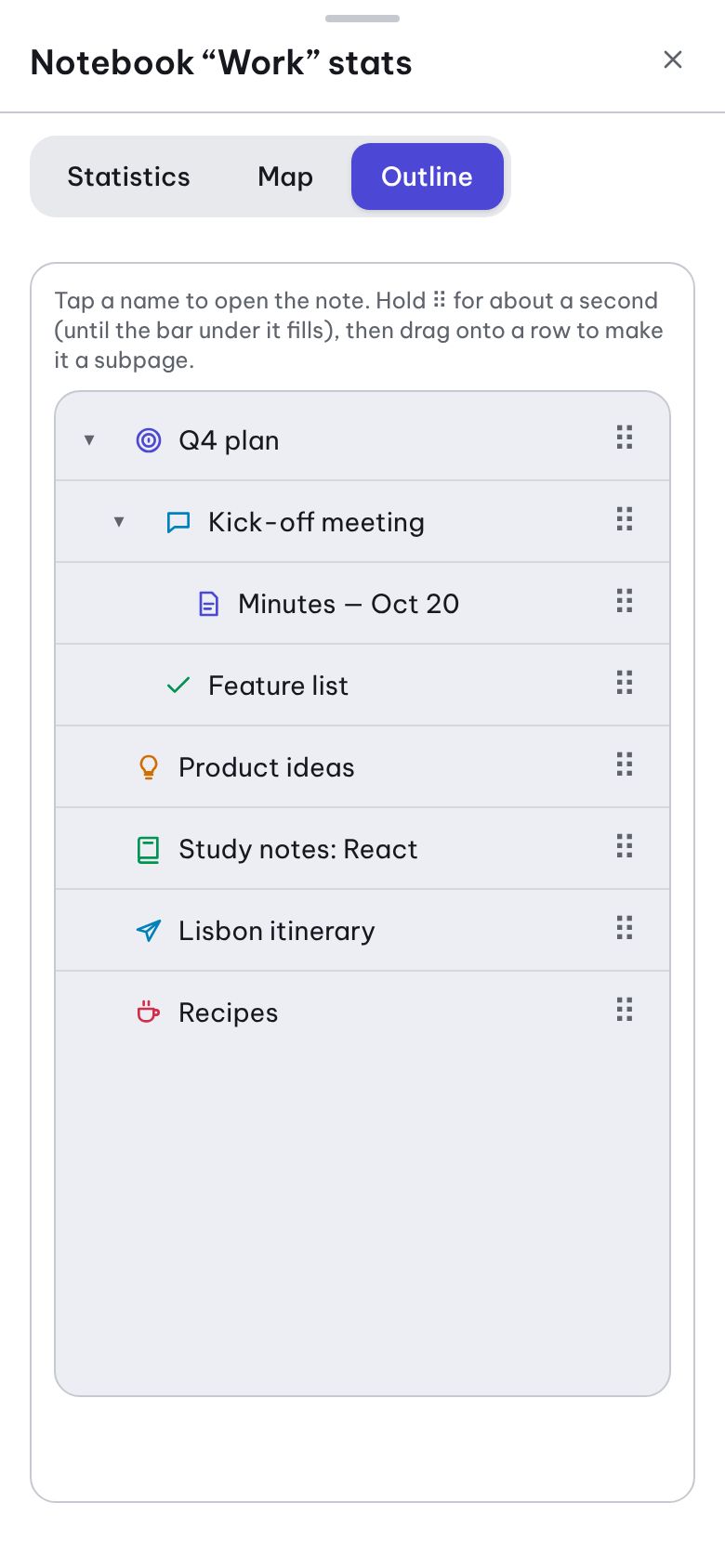
Organise a whole notebook on one screen
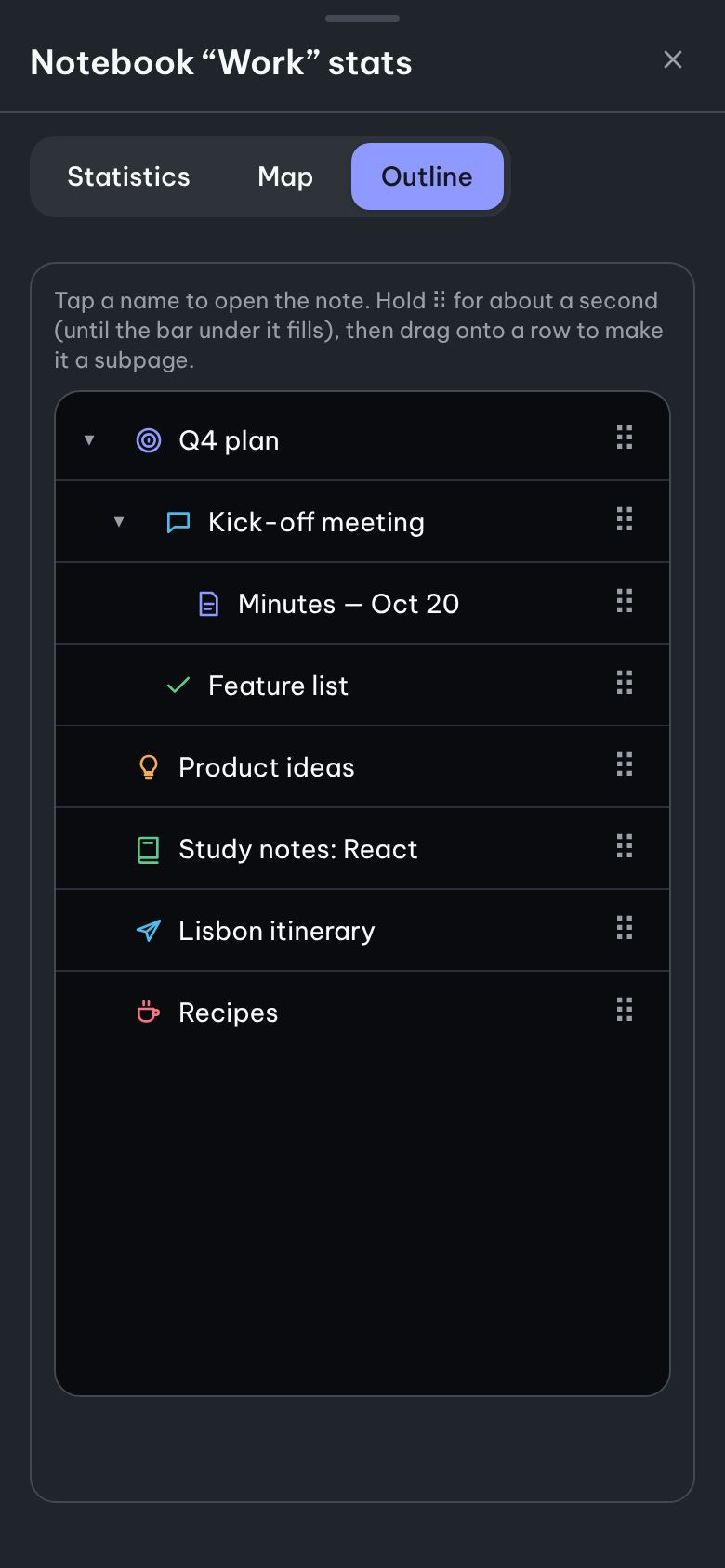
Open a notebook's Stats & map to see its numbers, a parent–child tree and an indented outline. Press and hold a note for about a second, then drag it onto another to change its parent.
Outline: tap a name to open it, ▸ / ▾ to collapse a branch
Map: tap a box to see its links, pinch to zoom
Change the parent from a searchable list — works with the keyboard too
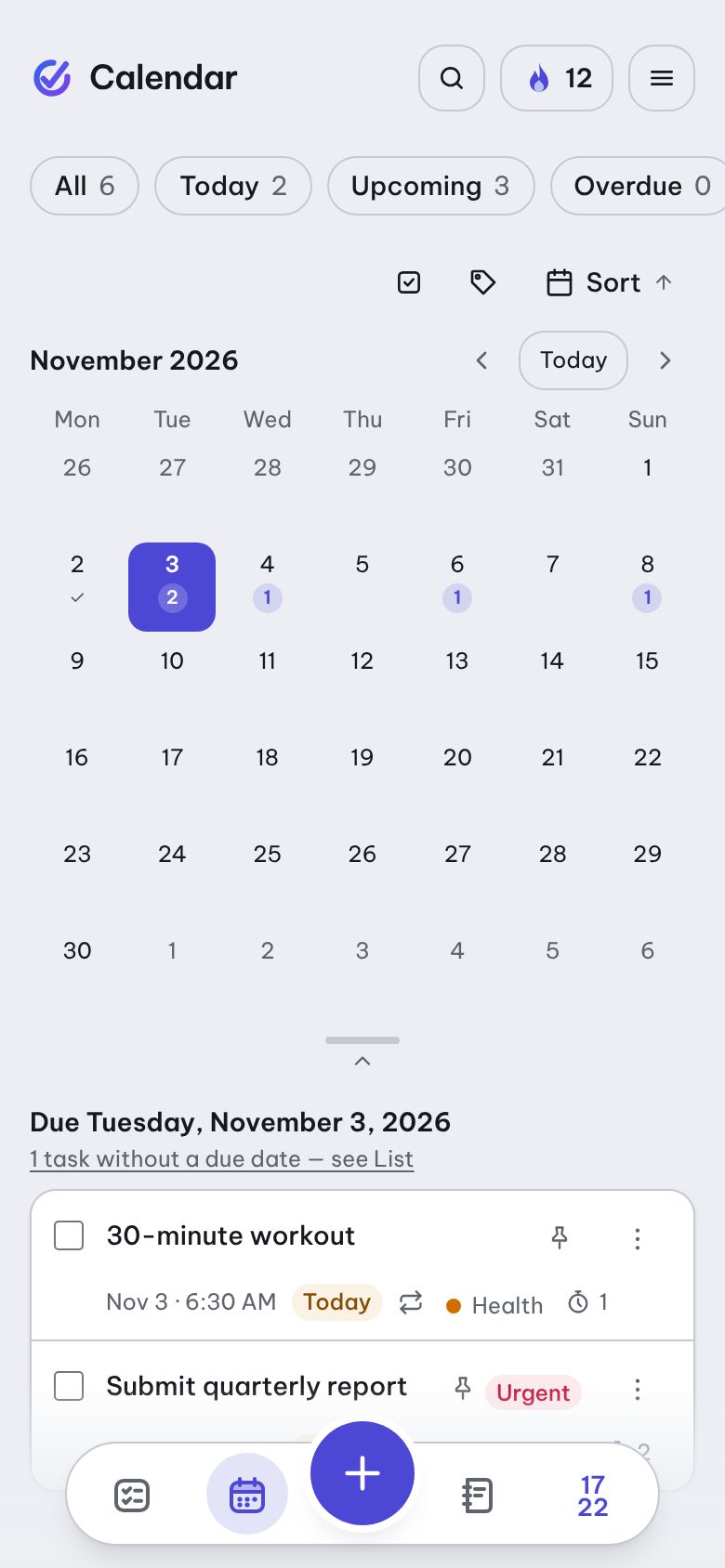
Your whole month on one screen
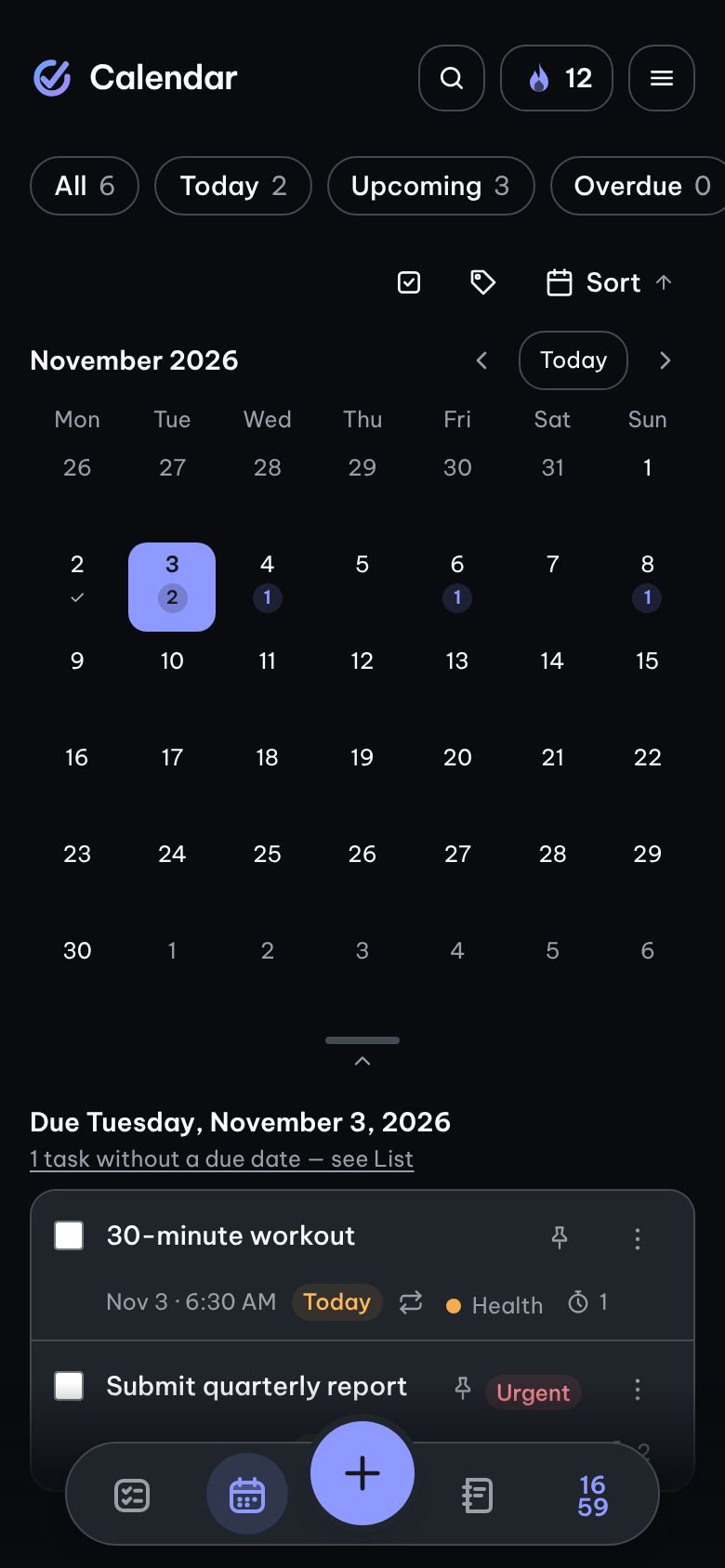
The calendar shows which days are piling up. Pick a day to see its tasks and add new ones already due that day.
Each day shows the number of open tasks as a number
Multi-day tasks appear on every day they span, labelled “Day 2/5”
Keyboard friendly: arrow keys change the day, Page Up/Down the month
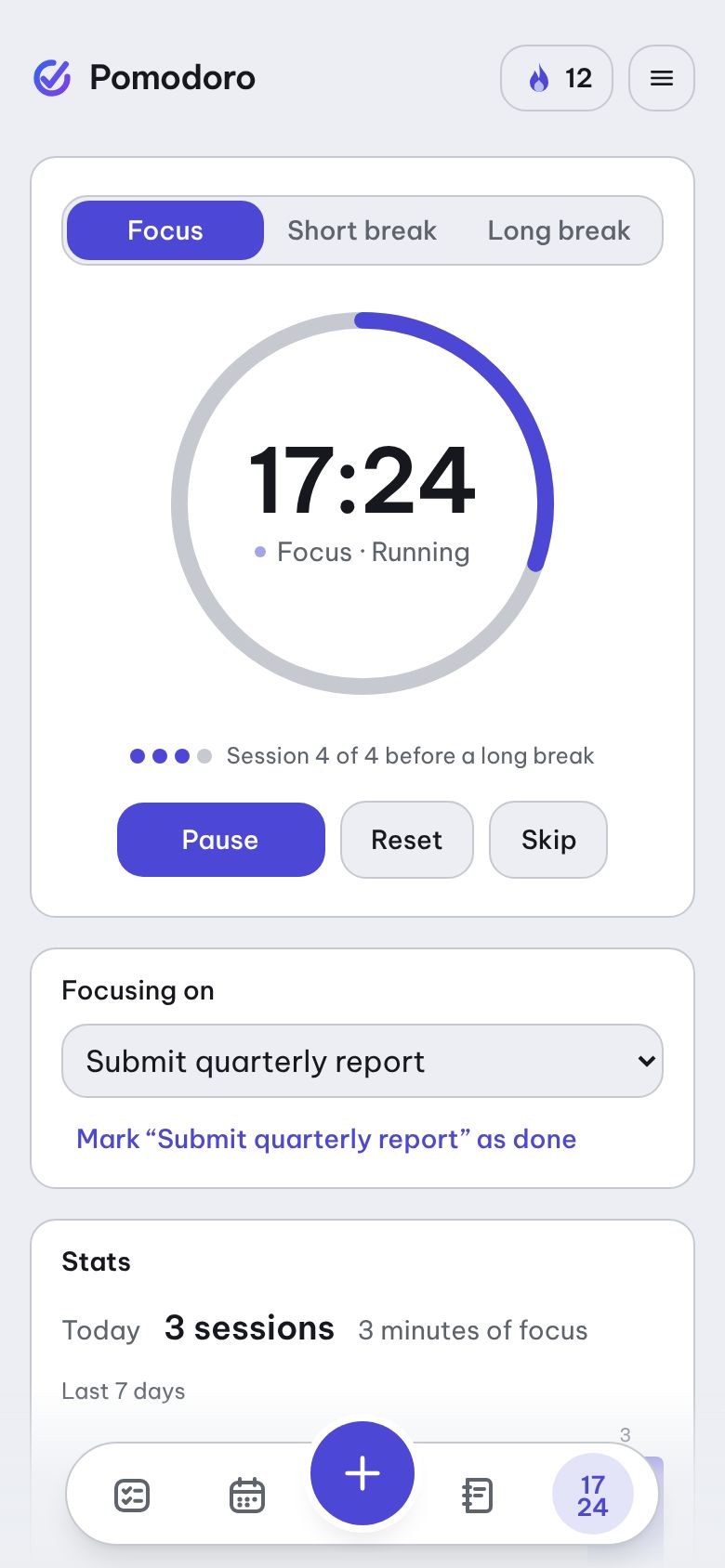
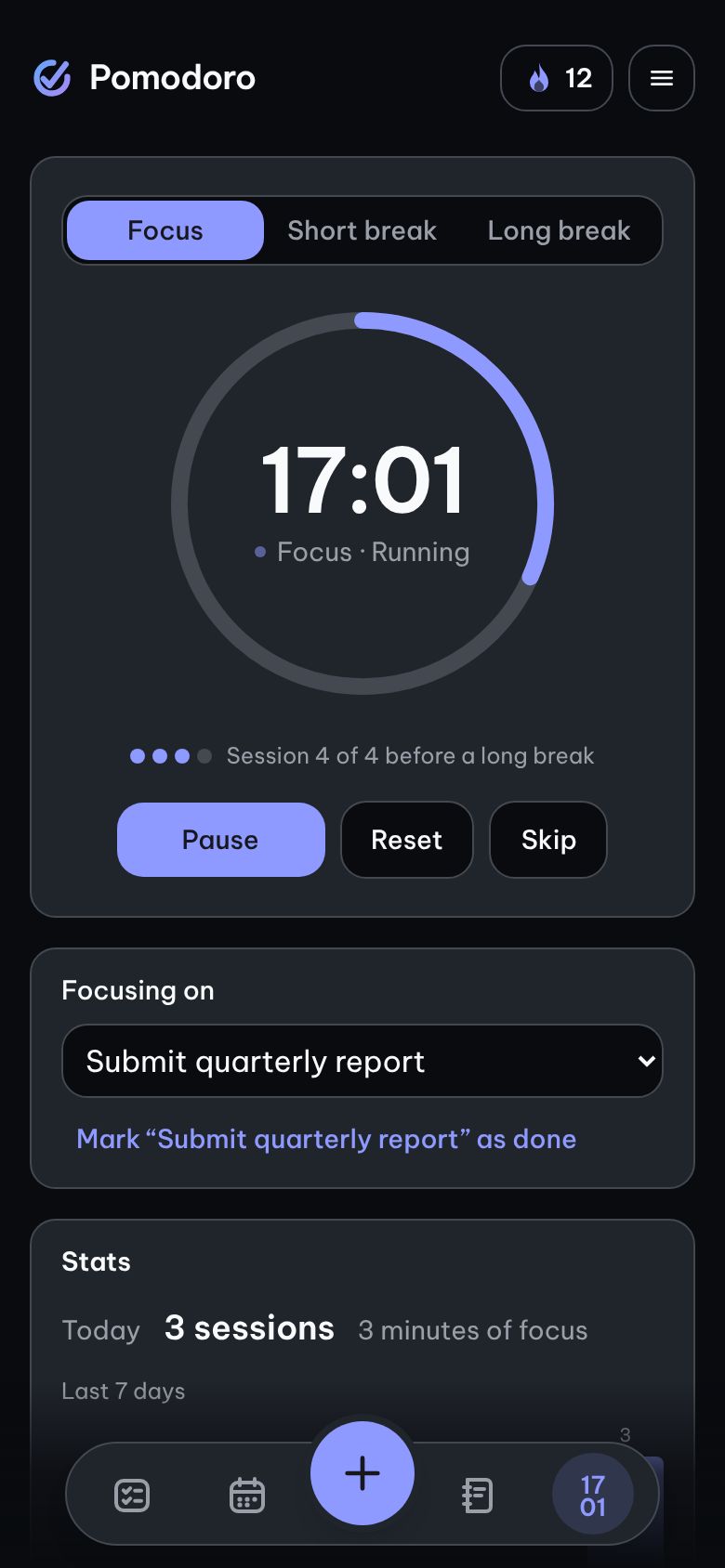
Focus on one task at a time
Pick a task and press Start — or tap “Focus on this task” right in the task details. The timer keeps running while you switch to the List; the dock shows the time left.
Focus / Short break / Long break, with adjustable lengths
Stats for today, the last 7 days and per task — cards show how many sessions you've done
Time up while offline? The session is saved once you're back online
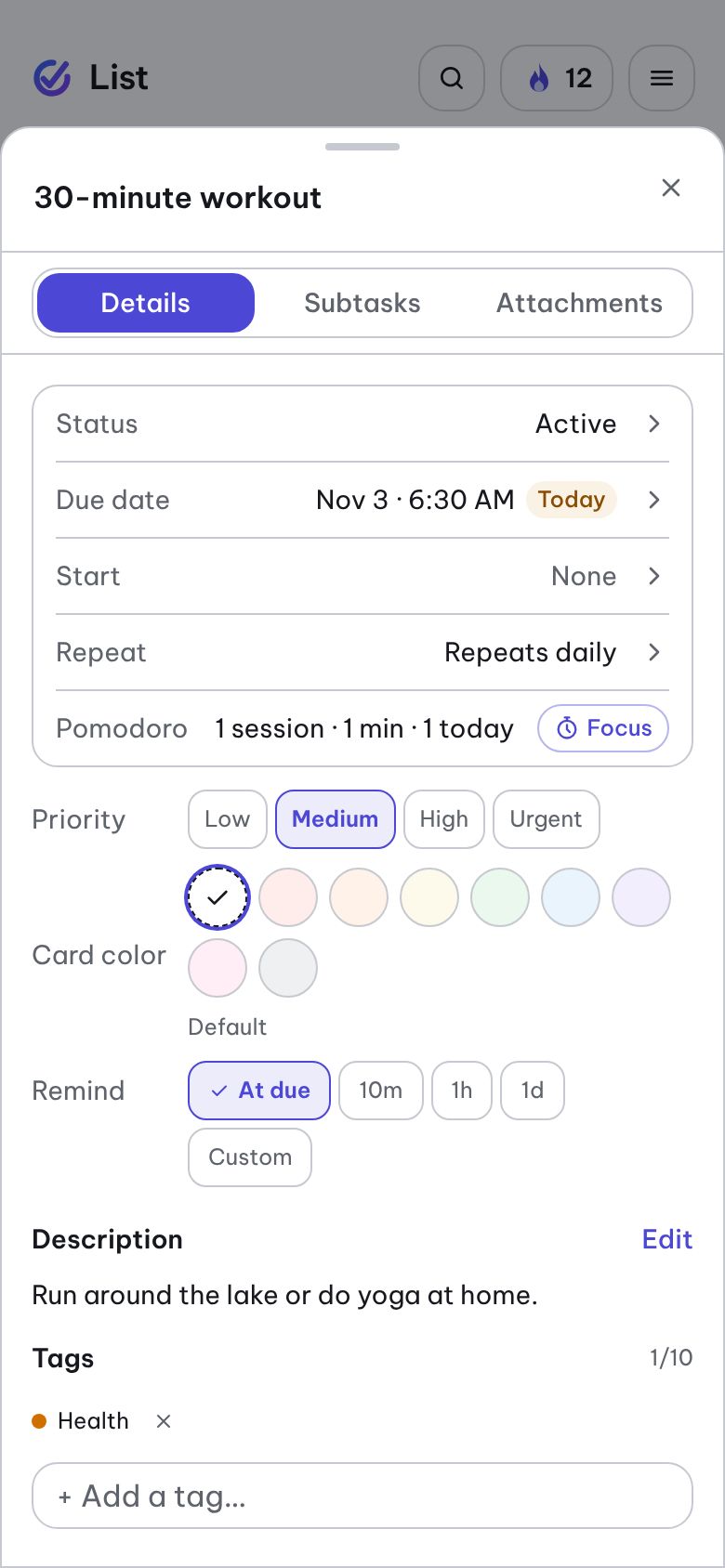
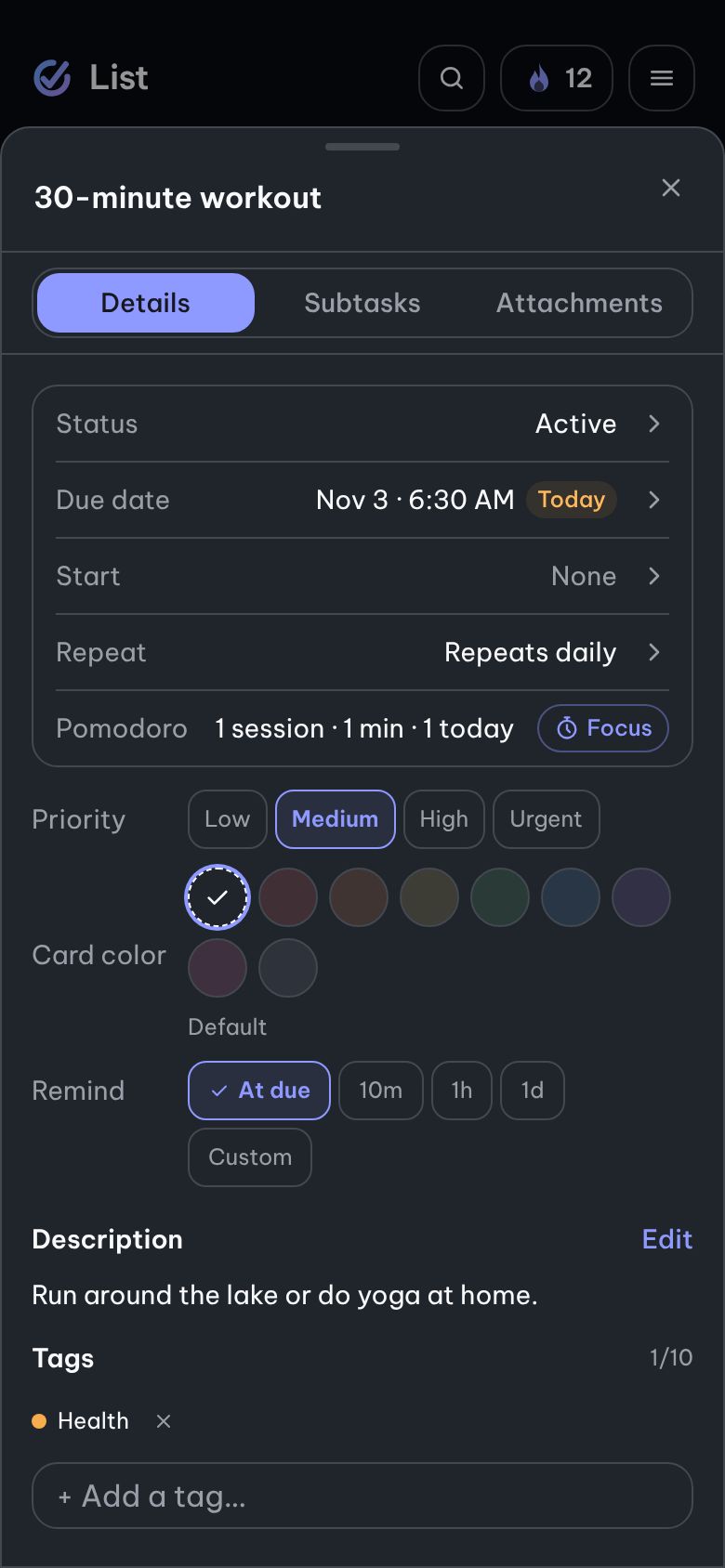
Every detail, one tidy tab
Status, due date, start date and repeat are one-line rows — tap to edit. Pick priority and reminder with a single tap.
Repeat daily, weekly on chosen days, monthly or yearly
Remind when due, 10 min, 1 hour or 1 day before — or at a custom time
Everything saves automatically
Reminders right in Telegram
Connect once in Settings. When it's time, the bot messages you — tap Done and the task is checked off in the app, tap Snooze and you'll be reminded again in an hour.
One message per reminder, never duplicated
Daily summary of overdue and today's tasks, at the time you choose
Turn reminders and the summary on or off separately; disconnect any time
Simple Todobot
📋 Today's summary — Monday, 9/28Overdue (1)• Call the AC repair shop — Sep 27Due today (2)• Submit monthly report — 5:00 PM• Buy a birthday gift8:00 AM
⏰ Submit monthly report1 hour left — due at 5:00 PM4:00 PM
✅ Done⏰ Snooze 1 hour
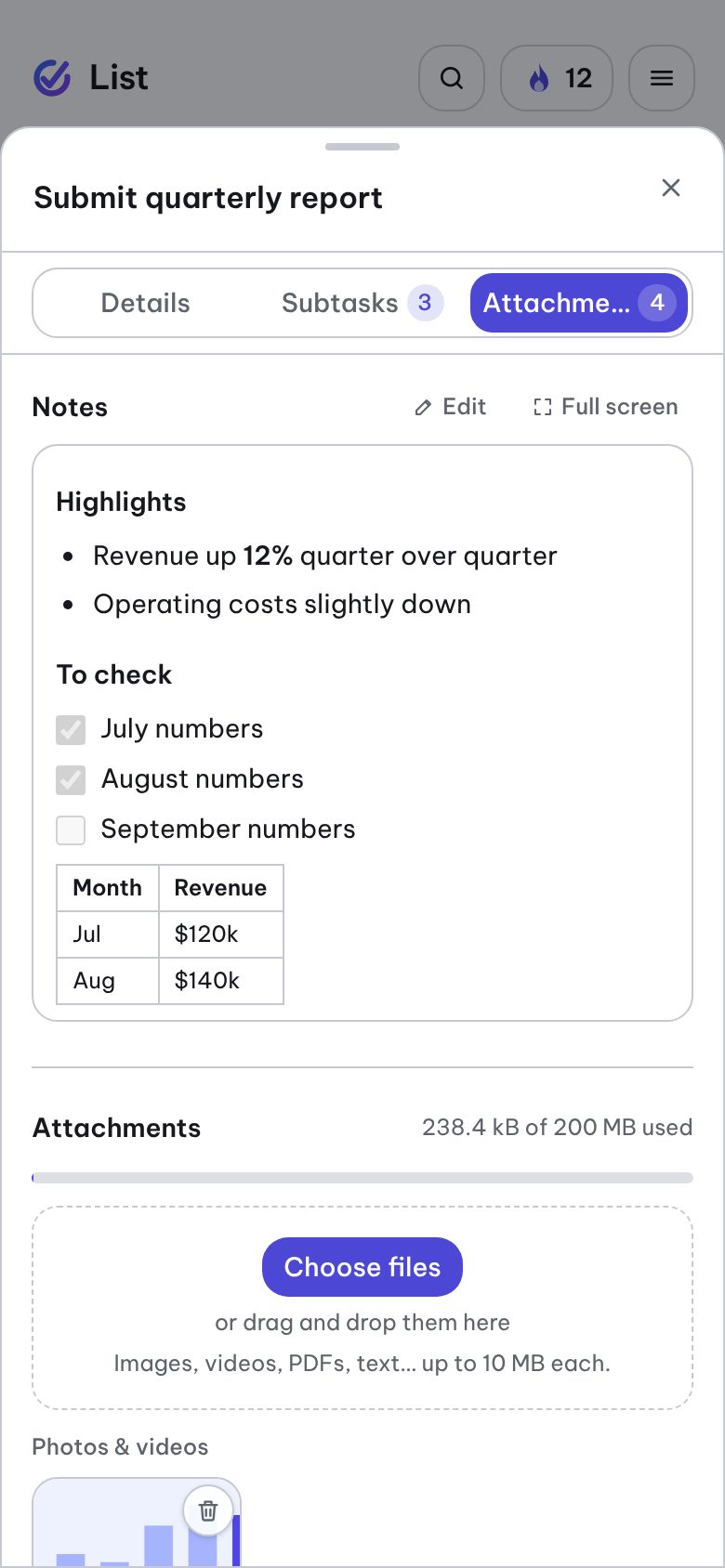
Every related file, right in the task
The Attachments tab takes images, PDFs and documents — pick or drag them in, with a progress bar and a cancel button.
View images, videos, PDFs and text files right in the app — no download needed
Always see how much of your 200 MB you've used
.svg and .html files never run inside the app
Everything you need, nothing you don't
Every feature is here because it helps you get things done — not to keep you in the app longer.
Add fast, swipe to finish
Add a task in a second — type #tag to tag it on the spot. Swipe right to complete, left to archive — with Undo, and every swipe action is also in the menu for keyboard users.
Daily Quest: keep the streak alive
Finish a few tasks a day to complete your quest, keep your streak going and open a chest for “My city”. Shields protect your streak when you miss a day; turn it off in Settings.
Markdown notebook
Notebooks, sub-pages, icons, images and ready-made templates for your notes. Create a task from a checklist line, reopen notes instantly, and read comfortably in Reading mode.
Rich notes
Mermaid diagrams (flowcharts, sequence, mind maps…), highlighted code blocks, highlighter, text colour, and a font and text size per note. Find and replace inside a note, accents optional.
PDFs in your notes
Insert a PDF into a note and read it right in the app — flip pages, zoom, search and copy text. Export a note as a clean PDF to share or print.
Notebook map and outline
See a whole notebook as a tree: stats, a parent–child map with links, or an indented outline. Press and hold a note, then drag it to change its parent — with Undo.
Due dates and repeating tasks
Set a date and time in your own time zone. Repeat daily, weekly or monthly: finish this one and the next one appears on its own.
Reminders on time
Get reminded when a task is due, 10 minutes, 1 hour or 1 day before — or at any time you pick, even for tasks without a due date. Notifications arrive even when the app is closed.
Reminders in Telegram
Connect your account to Telegram in one tap. Every reminder comes with ✅ Done and ⏰ Snooze 1 hour buttons right in the chat, plus a summary of today's tasks every morning.
Pins, tags, priorities
Pin important tasks to the top, add tags, set priorities (always labelled in text, never color alone). Archive old tasks and find them again.
Quick search, clear views
Find any task instantly, accents optional. Jump to Today · Upcoming · Done; on a computer you get a sidebar, a docked detail panel and the ⌘K / Ctrl K shortcut.
Subtasks and Markdown notes
Task details come in three tabs: Details · Subtasks · Attachments. Break work into steps; write notes with headings, lists and tables — saved as you type.
Attach images and documents
Drag files onto a task (up to 10 MB each, 200 MB per account); view images, videos and PDFs right in the app. Files live in private storage and open only through links that expire.
Month calendar view
Switch between List and Calendar. Each day shows how many tasks are open; multi-day tasks have a start date and show across their whole span. Tap a day to see it and add tasks to it.
Focus with Pomodoro
A 25/5-minute timer right in the app, started straight from a task. A chime and a notification when time is up; see how many sessions you focused each day and on each task.
Works offline
Install it to your home screen like an app. No signal? Keep adding, editing and checking off tasks; it syncs when you're back online.
Your data, portable
Download a copy of your tasks, notebooks, tags and Daily Quest progress as a JSON file any time, and import it back — items you already have are skipped.
Easy on the eyes, easy for everyone
Vietnamese, English, Japanese or Chinese; light or dark; several themes. Every swipe and drag has a keyboard button; color is never the only signal.
Secure sign-in
Use email and password, or your Google account (only your name, email and profile picture). Forgot your password? Reset it by email.
Write for the blog
Write posts in Markdown right in the app and submit them for review. Approved posts are published on the public Blog for everyone to read.
Why Simple Todo
Free, no ads
No paid tiers, no ads squeezed between your tasks.
Your data is yours
No trackers, no selling data. Only you can see your tasks.
As light as a web page
Opens right in your browser on phone or computer — no app store download needed.